1Password for Agents: Signing In Is Only the First Step
POLICY & RESEARCH
1Password for Agents: Signing In Is Only the First Step
An agent needs to sign in before it can do useful work inside an account. Handing over the password creates an obvious problem; keeping the password hidden addresses only part of it. 1Password's proposal deserves a look at both the sign-in request and the access that remains afterward.
In this article
That is what caught my eye in 1Password for Agents, announced on October 22. According to the company, a supported agent can ask to use a saved login, while 1Password handles the credential separately. The agent gets into the account without receiving the password. I find that useful. I would still want to know exactly what happens after the door opens. The launch announcement describes the sign-in design.
This is a reading of the published documentation, checked on October 23, 2026. I have not tested these integrations or audited their security. The distinction matters here, because a partner logo and a successful sign-in tell us less than a finished, properly authorized task.
How can an agent sign in without seeing the password?
The agent reaches a sign-in form and requests the credential it needs. The user sees the requested login and its purpose, then approves or denies the request on their own device. After approval, 1Password fills the website directly. It does not hand the secret back as text for the model to handle, according to the company’s description of the flow.
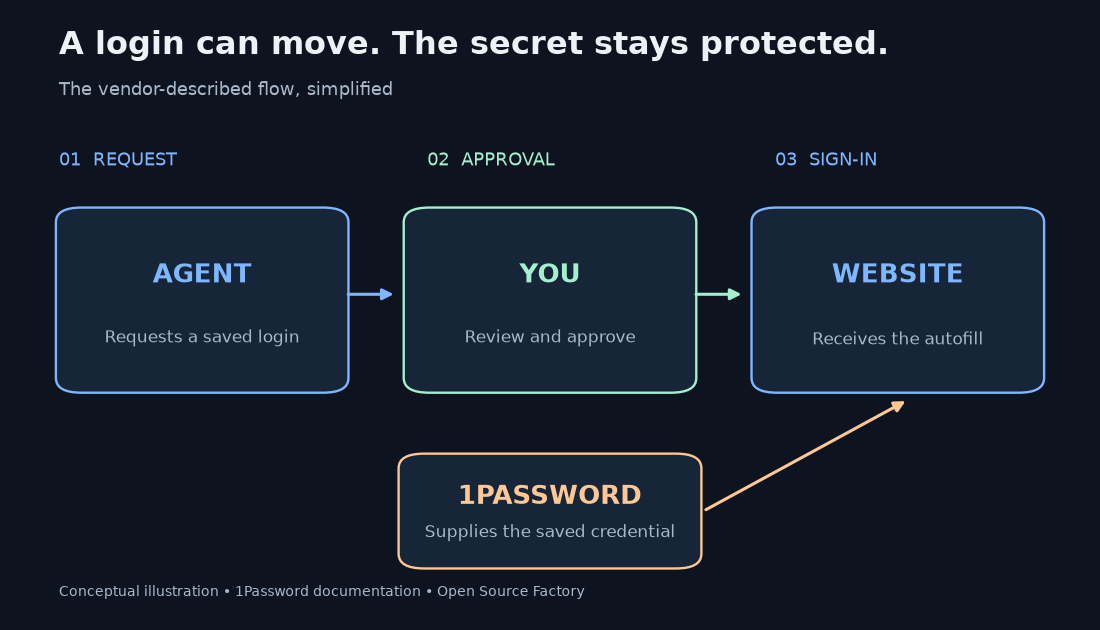
The useful change is where the password travels. Pasting a password into a conversation makes it part of material the assistant can process. Here, the intended route leads to the sign-in form, with the human deciding whether the requested access makes sense. It is still a website login using credentials; describing this as passwordless authentication would confuse two different things.
On its Muse integration page, 1Password also says the agent does not see the one-time code. That does not establish support for every site, challenge, passkey, or multifactor method. I would check the actual integration instructions before assuming my particular account will work.
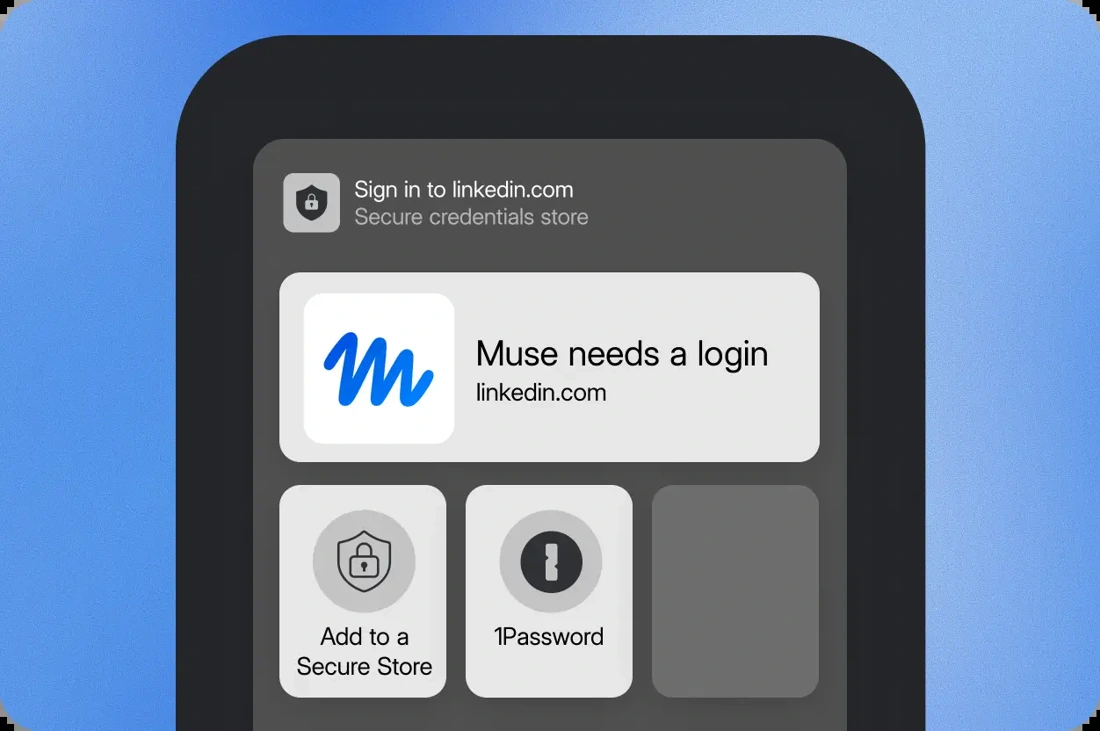
Which agents can actually use it?
The launch list needs a little care. Muse and Grok Bot are described as rolling out over the coming days. Claude Duet, ChatGPT Work, dots, and Town Townie are listed as coming soon. A feature announced for a partner is not a feature available to every account on announcement day. These are the states in 1Password’s October 22 announcement, checked again for this article.
| Agent | Published rollout state |
|---|---|
| Meta Muse | Rolling out over the coming days |
| Grok Bot | Rolling out over the coming days |
| Claude Duet | Coming soon |
| ChatGPT Work and dots | Coming soon |
| Town Townie | Web and iOS integrations coming soon |
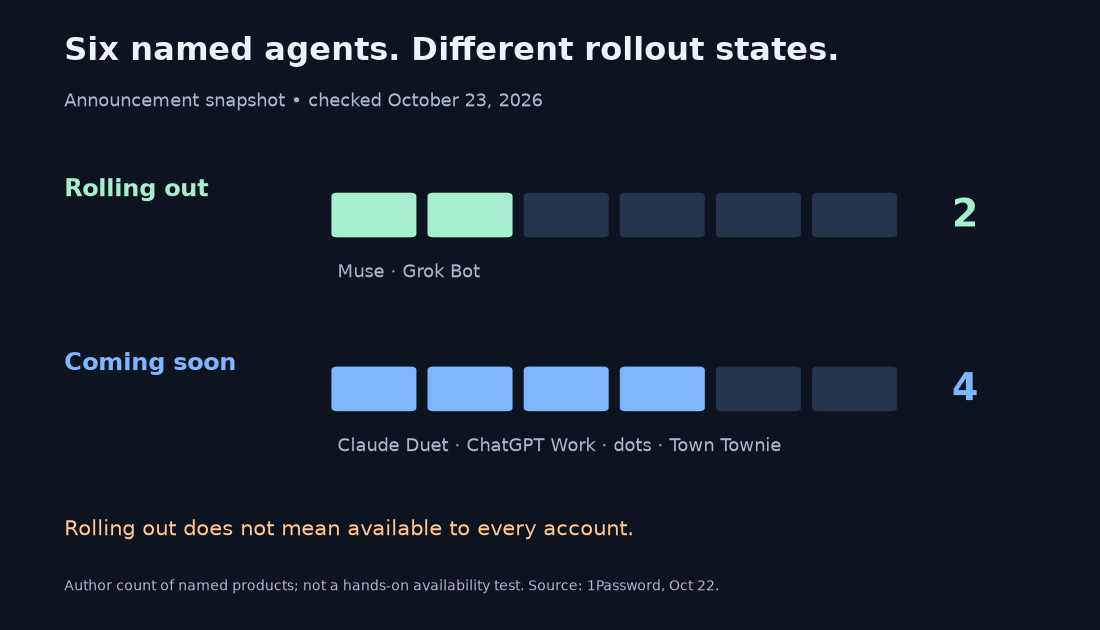
I counted six named agent products, with two in the rollout group and four in the coming-soon group. That is an availability snapshot, not a compatibility benchmark. I would not pick an assistant just because its logo appears on the platform page. The useful question is whether the connection has reached my account and supports the task I need.
If you are still choosing an assistant, my earlier Muse, Grok Bot, and dots comparison covers the broader workflow differences. This new connection addresses one part of that experience: getting through an account’s sign-in step.
Is it included in my current 1Password plan?
There is no extra integration charge for eligible Individual and Family accounts on 1Password.com, according to the launch blog. That means included with an eligible subscription, rather than a free standalone password manager. Accounts hosted at 1Password.eu and 1Password.ca are currently excluded.
The account region is easy to overlook. The domain holding the account matters here, not simply the language on your phone or where you are traveling. If you already pay for 1Password, I would verify that domain before spending time trying to connect an agent.
Partner conditions can add another restriction. The Grok Bot page says Business and Team Starter Pack accounts are not eligible for that integration. That should not be stretched into a claim that 1Password has no business products for AI access. It is a condition on this particular personal-agent connection.
What changes after the login succeeds?
This is the part I care about most. A protected password can still unlock an account full of readable information and actionable controls. The platform’s own FAQ says what an agent can see or do after sign-in depends on the agent and website. Credential protection does not answer every question about what the assistant should be allowed to do.
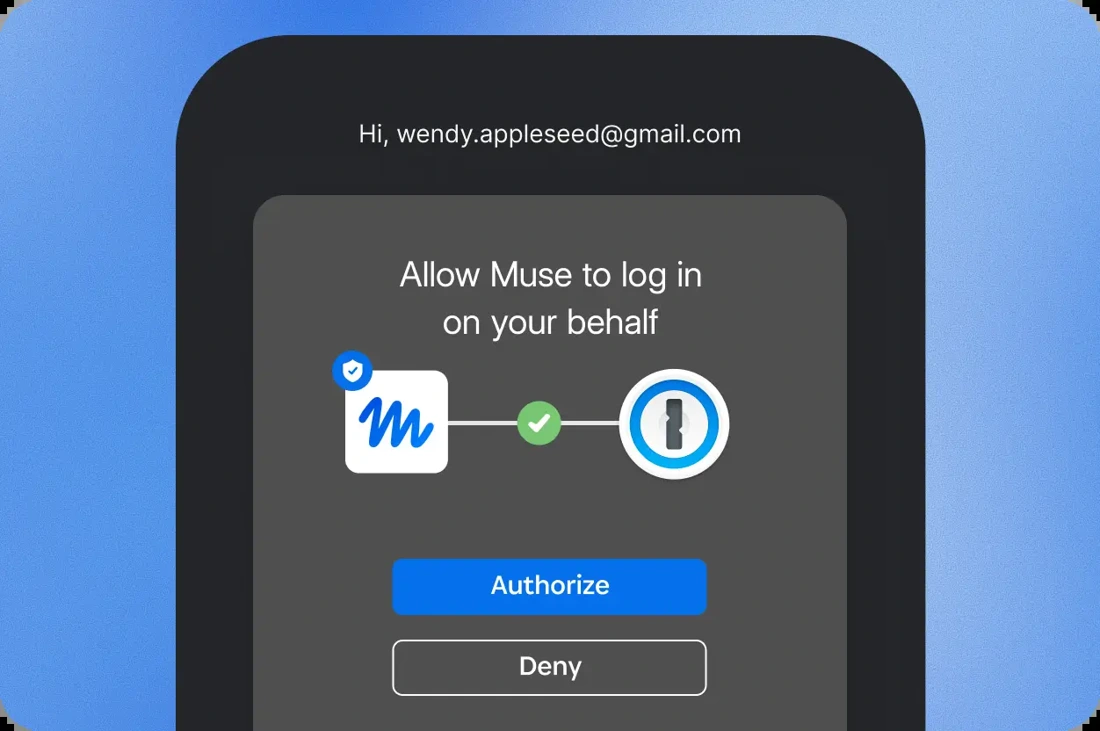
I find it helpful to separate two decisions: letting the agent use a particular login, and defining the work it may perform in that account. That is my way of explaining the boundary. It is not a separately announced two-step approval product feature.
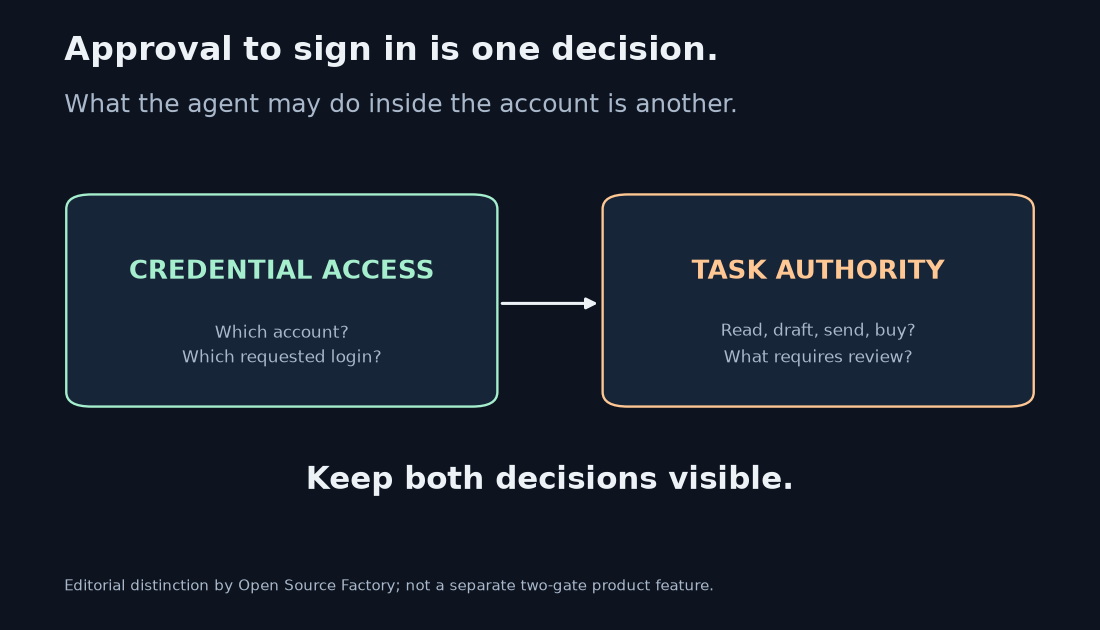
Suppose an assistant signs into an airline account to check an existing reservation. Seeing the booking is useful. Changing the itinerary, buying an upgrade, or spending loyalty points may be unnecessary for the request. Those actions should be addressed in the task instructions and the agent’s controls, rather than assumed away because the password stayed hidden.
The same applies to email. An assistant may need to read messages to summarize a thread. Sending a reply to an external recipient raises a separate question about content, audience, and authorization. My earlier article about AI agents posting user-provided images online explains why I pay attention to where information goes after an agent has access to it. That incident does not prove anything about 1Password; it illustrates the broader issue.
I would also avoid a universal claim that every sign-in needs a fresh approval. The official FAQ says approval frequency can vary by integration. The Muse page offers disconnection, but disconnecting a link should not be read as a promise to undo a completed purchase or instantly invalidate every website session.
What would I check before connecting an account?
For a first task, I would choose something small enough to inspect. The following are my suggested boundaries, not capabilities I have verified in each partner:
- Travel: retrieve a reservation and summarize the details. Review any itinerary change or purchase separately.
- Shopping: prepare a cart within a stated budget. Inspect items, delivery address, and final spend before payment.
- Email: read a specified thread and draft a response. Check recipients and attachments before sending.
- A website: prepare a draft update. Review its public content and destination before publishing.
Each example makes the requested account useful while keeping the outcome easy to check. None requires giving the assistant every login I own. If an agent asks for a different account midway through the job, I would want the new request explained in the context of that job.
I would read the partner’s setup and removal instructions before connecting. A sensible starting point is the smallest account scope and the clearest task I can describe. If the integration cannot make those boundaries understandable, the convenience of skipping a login screen would not persuade me.
Inspect access after sign-in
1Password for Agents addresses a practical problem at the moment assistants are starting to work inside more of our accounts. Keeping the credential out of the model is a meaningful design goal. The value for me would be a clear request for a particular login, coupled with a task I can understand and review.
I would judge the finished experience by the requests it shows, the control it leaves me, and how clearly it explains disconnection. On October 23, rollout timing and account eligibility are still part of that judgment. I will update the availability section when the named coming-soon integrations have concrete setup instructions and rollout details.
For now, I am interested in the connection. I would start with one modest job, then inspect what happened inside the account.
Launch blog and rollout states · October 22 press release · Platform FAQ and account-access limits · Muse integration · Grok Bot integration
Published by Open Source Factory. Official interface images credited to 1Password. Original figures and editorial analysis by Open Source Factory. No affiliate links. This article does not report an independent security test.
Comments
Post a Comment